Template previews
Plan, Track, and Review Your Monthly Budget in Excel
A monthly budget is easier to follow when everything is in one place.
Many people start the month with a rough plan in their head. They know how much they expect to earn, they estimate their bills, and they hope the rest of their spending stays under control. The problem is that the plan often gets separated from the actual spending. Income is in one place, expenses are in another, and by the end of the month it becomes difficult to see what really happened.
The Monthly Budget Planner Excel Template helps solve that problem with one simple workbook. You can plan your income, set spending limits by category, record actual expenses, and review the difference between your budget and your real spending.
It is built for practical monthly money management, not complicated financial modeling. The template gives you a structured way to plan, track, and review your month using familiar Excel worksheets.
What This Template Helps You Do
This free Monthly Budget Planner Excel Template is designed to cover the core tasks of monthly personal finance management. It guides you through a structured monthly workflow so you can stay on top of your financial goals.
- Plan your monthly income — Enter your expected income sources for the month, such as salary, freelance income, business income, side income, investment income, or other income.
- Set category budgets — Create planned spending amounts for categories such as housing, utilities, groceries, transportation, subscriptions, dining out, travel, and more.
- Record actual expenses — Use the Expense Tracker sheet to log daily spending. You can record the date, description, category, payment method, amount, and notes for each transaction.
- Compare budget vs actual — The workbook compares your planned budget with actual spending so you can see where you are on track, near your limit, or over budget.
- Identify overspending — The dashboard and summary areas highlight categories that need attention. This makes it easier to spot problems before they become bigger habits.
- Review top spending categories — See where most of your money went during the month. This is useful when you want to understand spending patterns instead of only looking at total expenses.
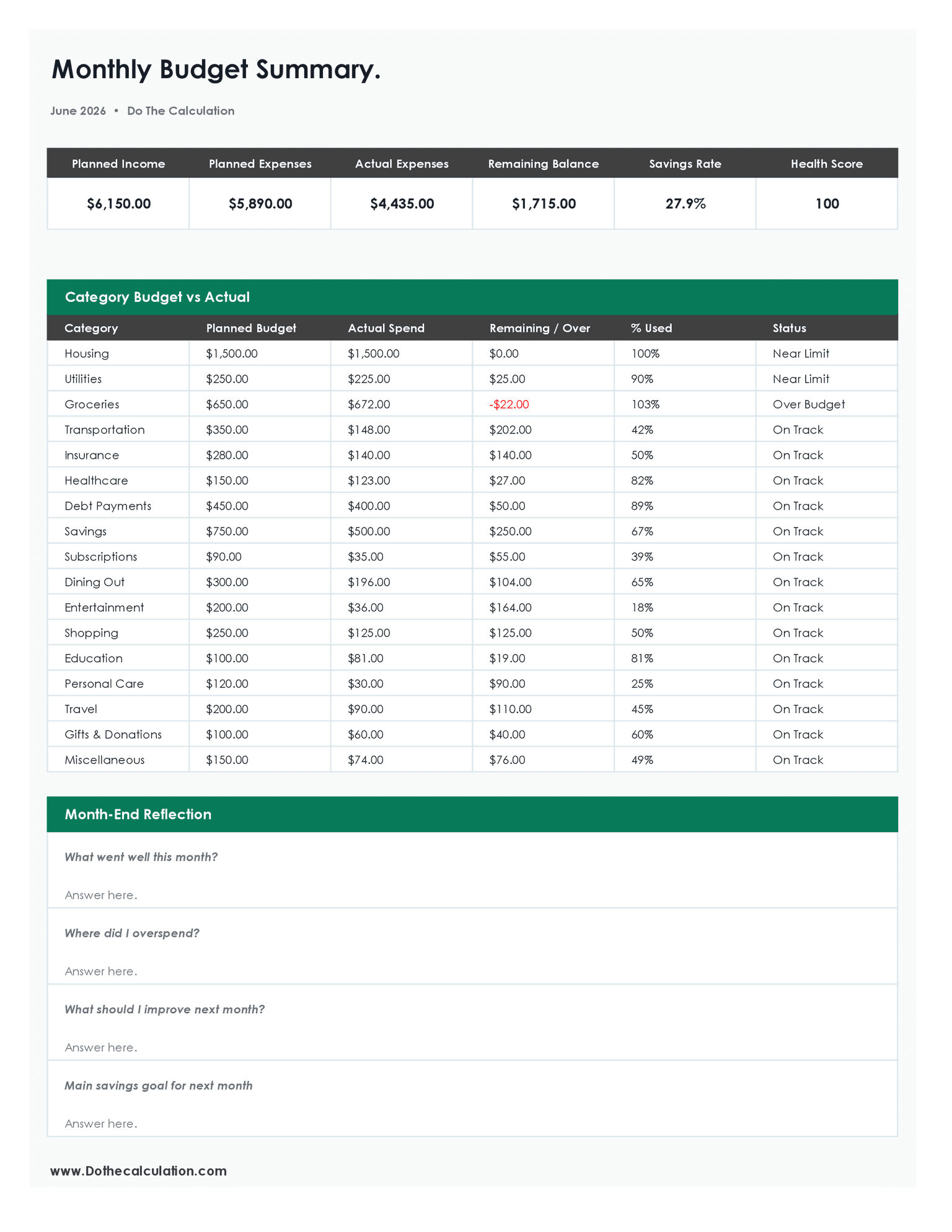
- Print or save a monthly summary — The Print Summary sheet gives you a clean month-end view of planned income, expenses, actual spending, remaining balance, savings rate, health score, and reflection prompts.
What’s Included in the Workbook
The free version includes 8 worksheet tabs, each designed with a specific role in your budgeting process.
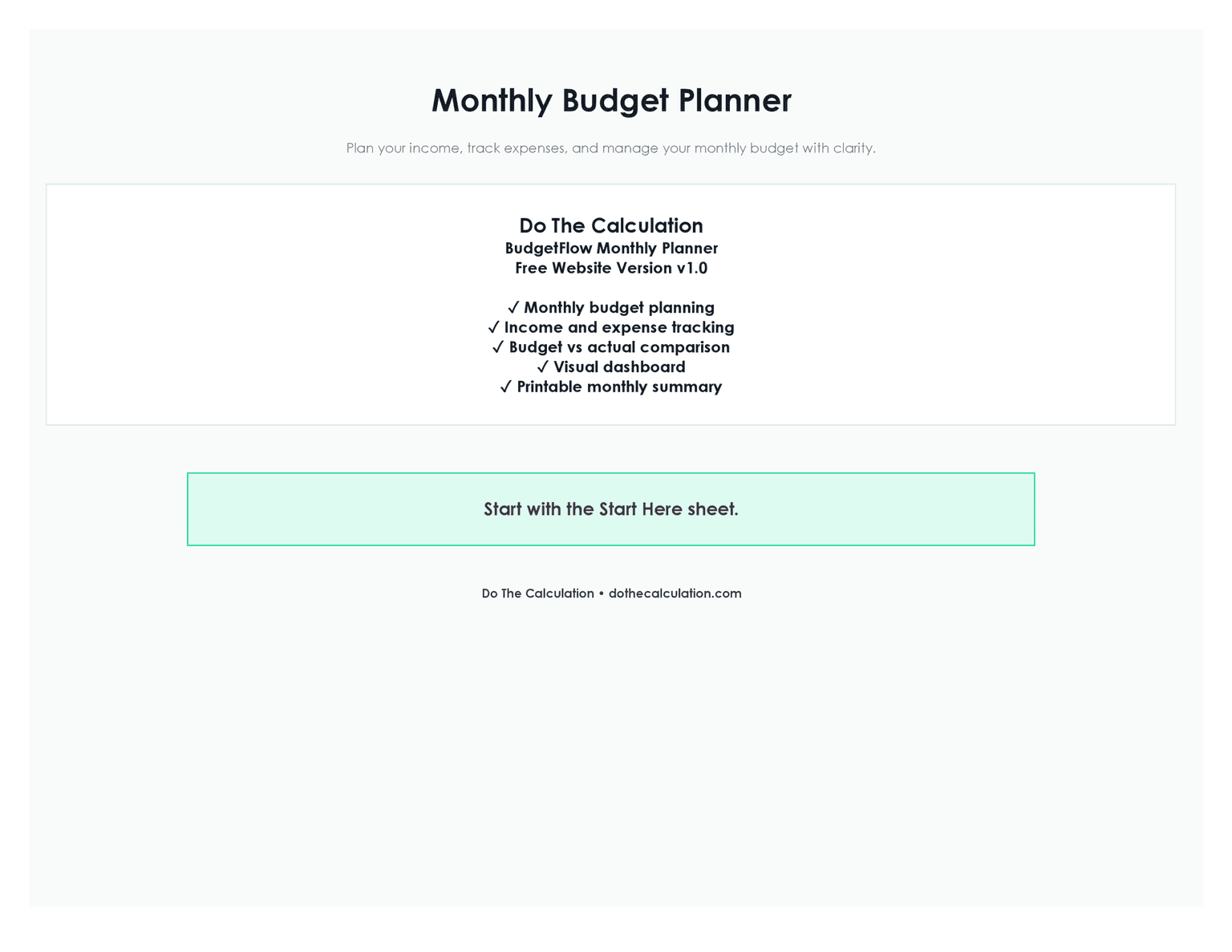
1. Cover
The Cover sheet introduces the template and confirms the product name, version, brand, and main features. It gives users a clean starting point before moving into the workbook.
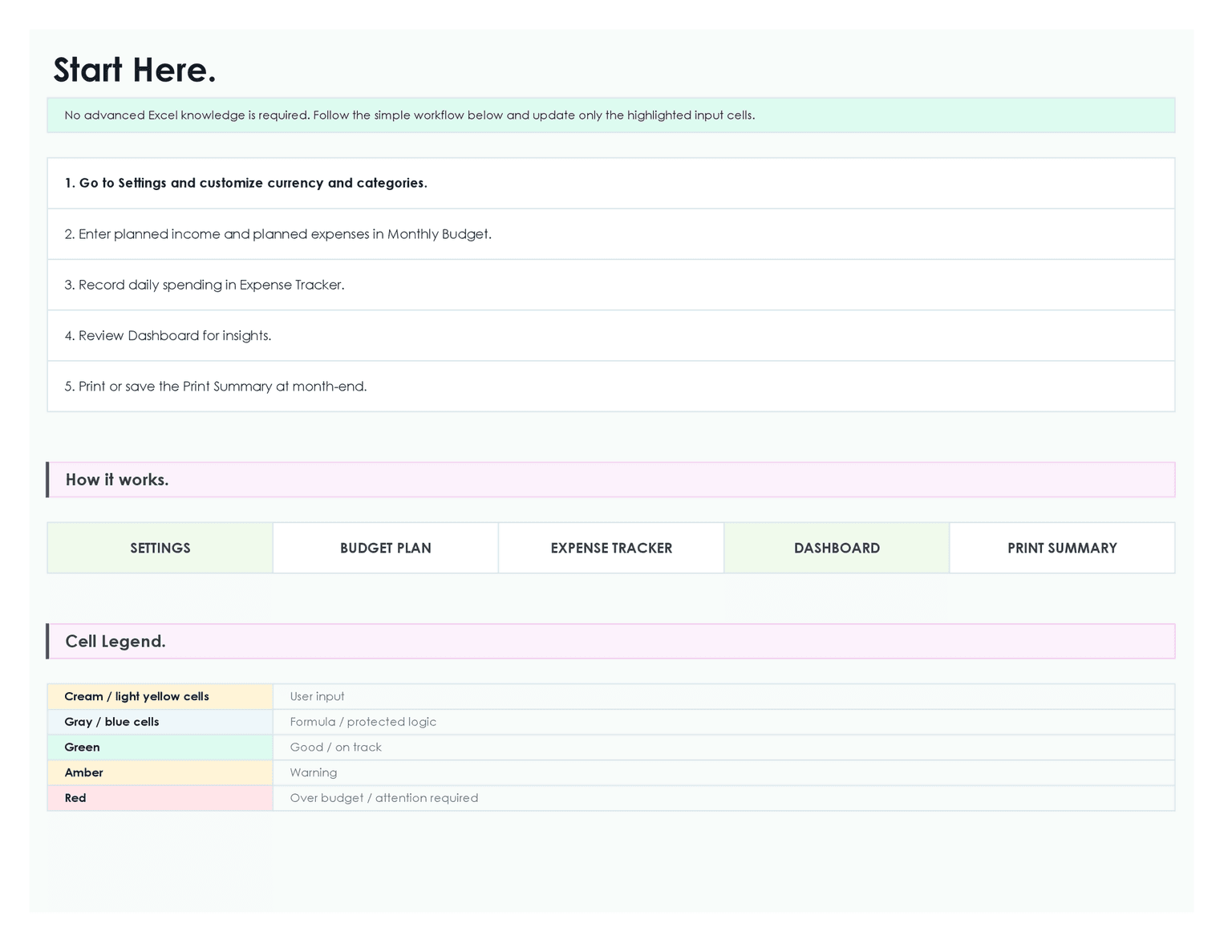
2. Start Here
The Start Here sheet explains the basic workflow in simple steps. It shows users where to begin, what to edit, and how the workbook is intended to be used.
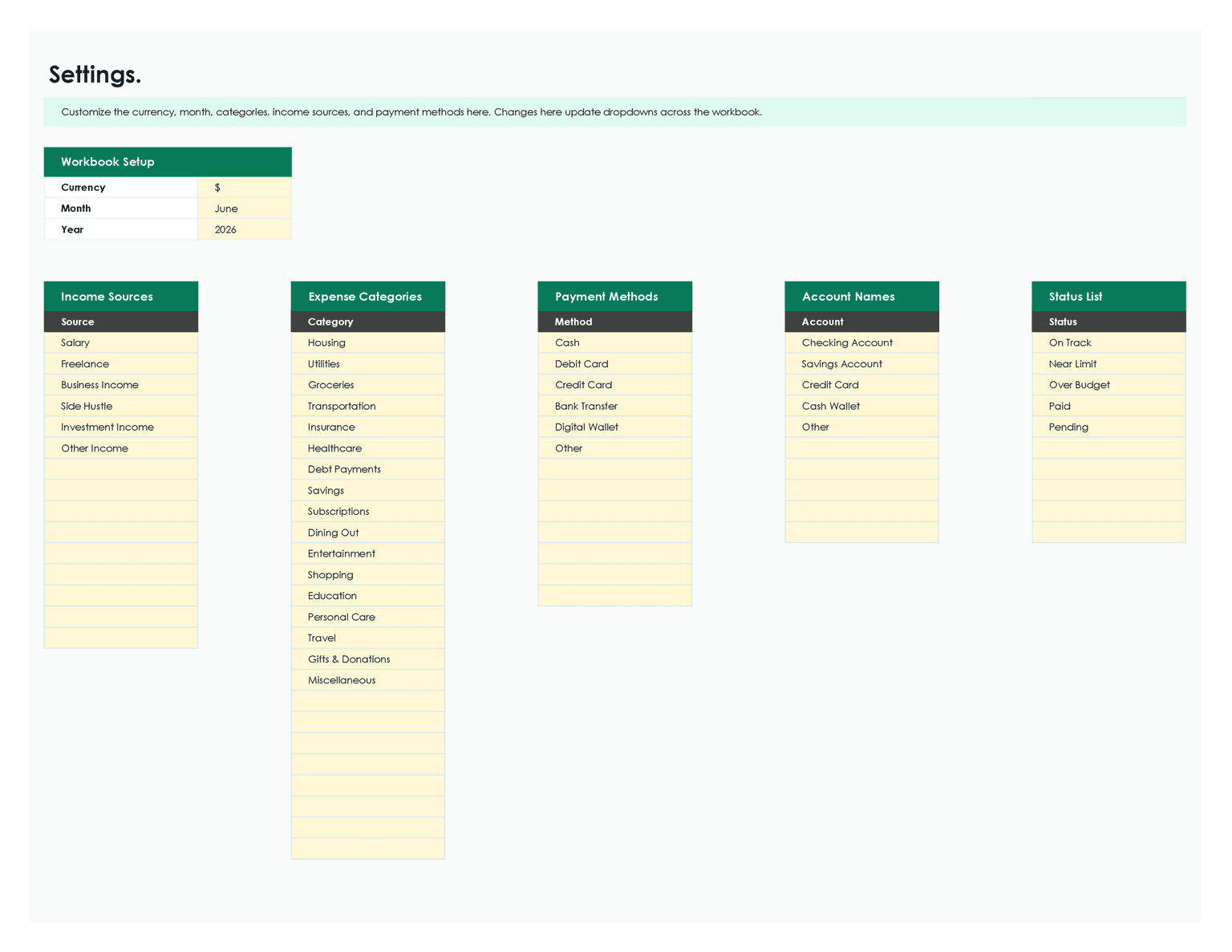
3. Settings
The Settings sheet lets you customize the workbook setup. It includes currency, month, year, income sources, expense categories, payment methods, account names, and status options.
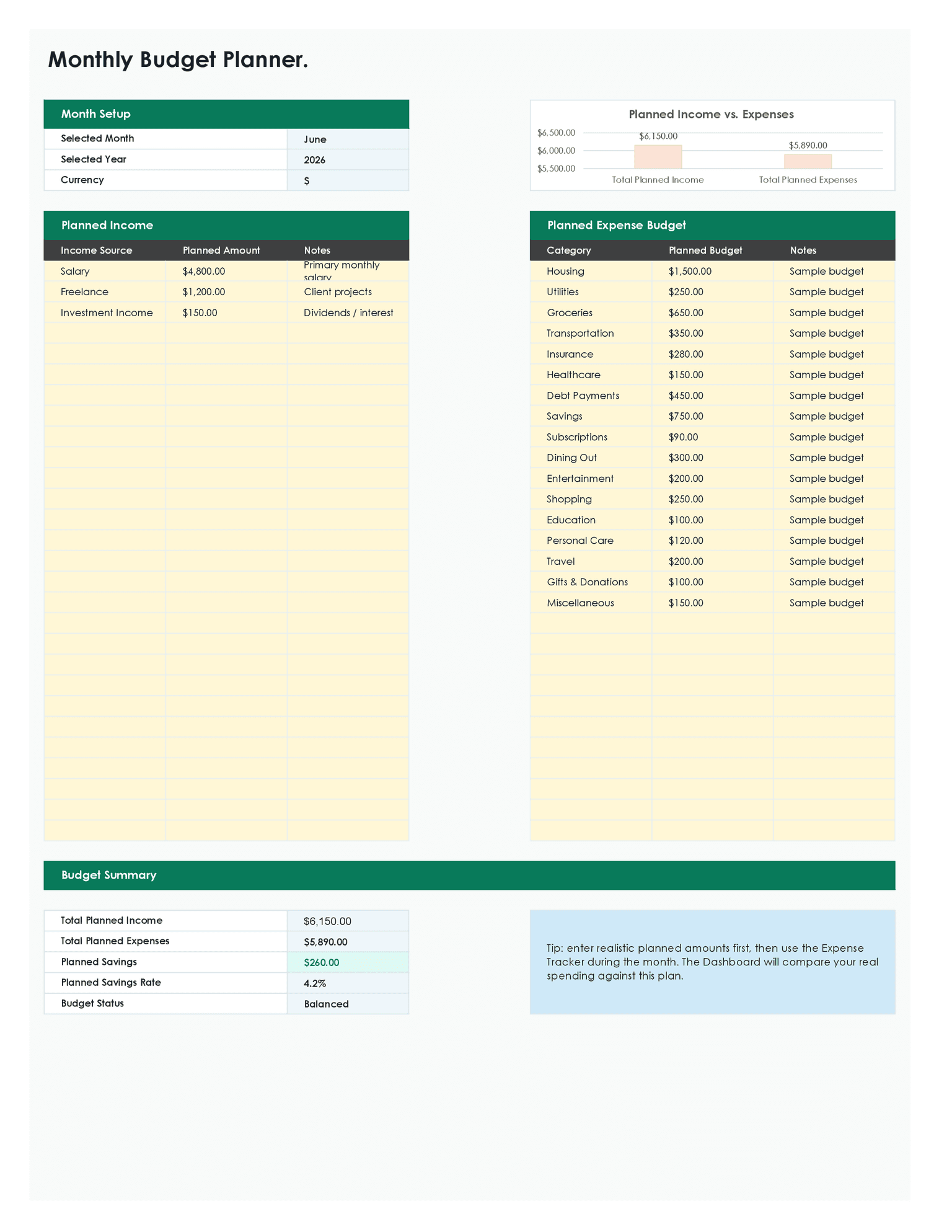
4. Monthly Budget
The Monthly Budget sheet is where you plan your month before tracking actual spending. It includes a month setup area, planned income table, planned expense budget table, chart, and budget summary.
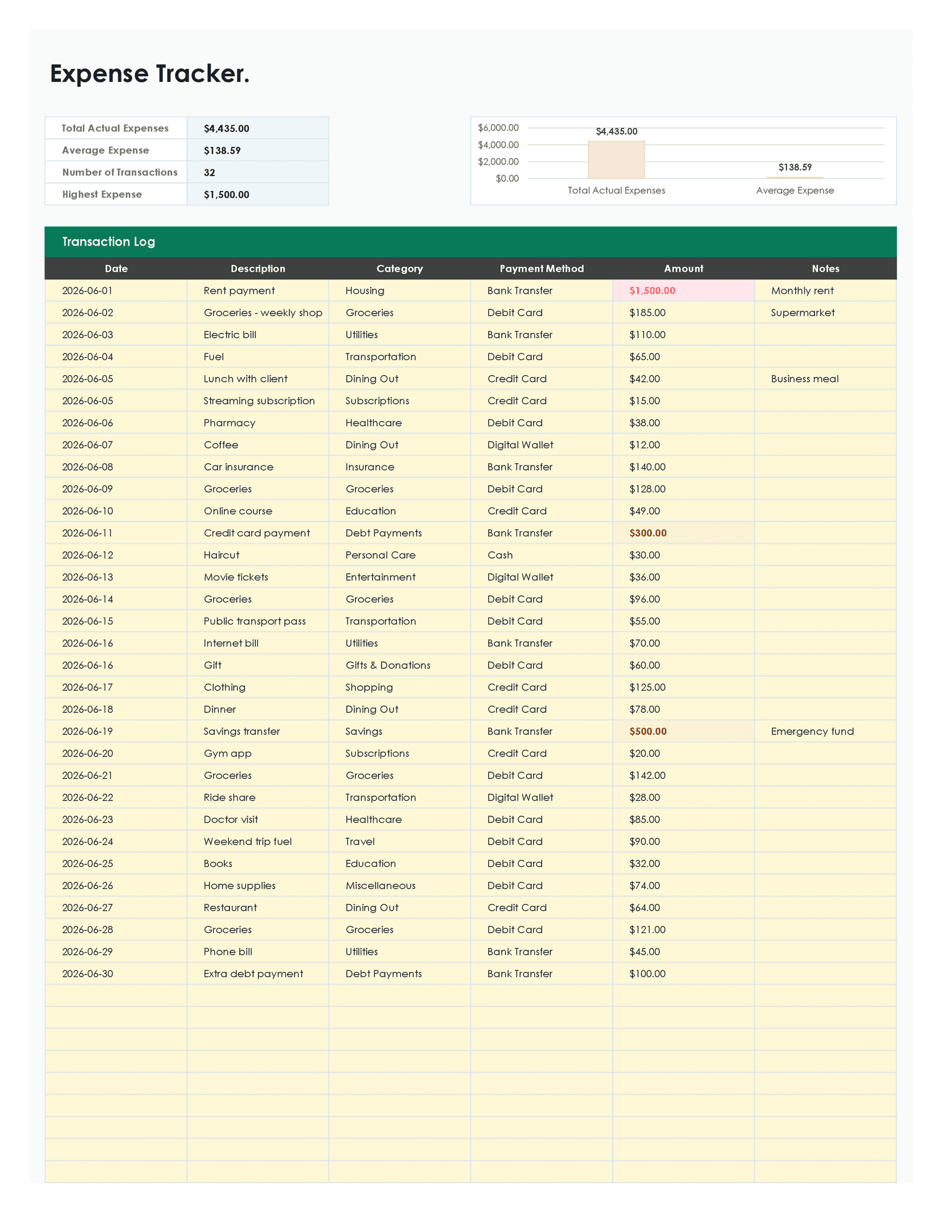
5. Expense Tracker
The Expense Tracker sheet is used to record actual spending. It includes a transaction log with columns for date, description, category, payment method, amount, and notes.
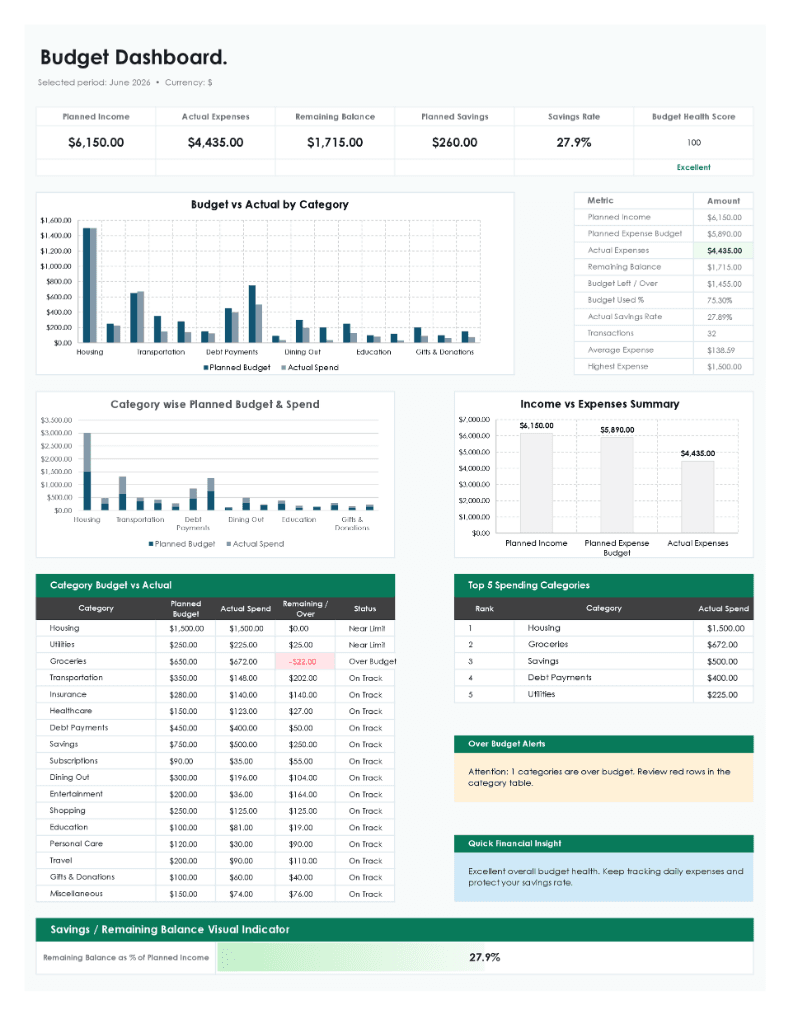
6. Dashboard
The Dashboard sheet summarizes the month visually. It includes KPI cards, budget vs actual charts, category analysis, top spending categories, over-budget alerts, and a quick financial insight area.
7. Print Summary
The Print Summary sheet gives you a clean monthly report with key totals, category budget vs actual results, and month-end reflection prompts.
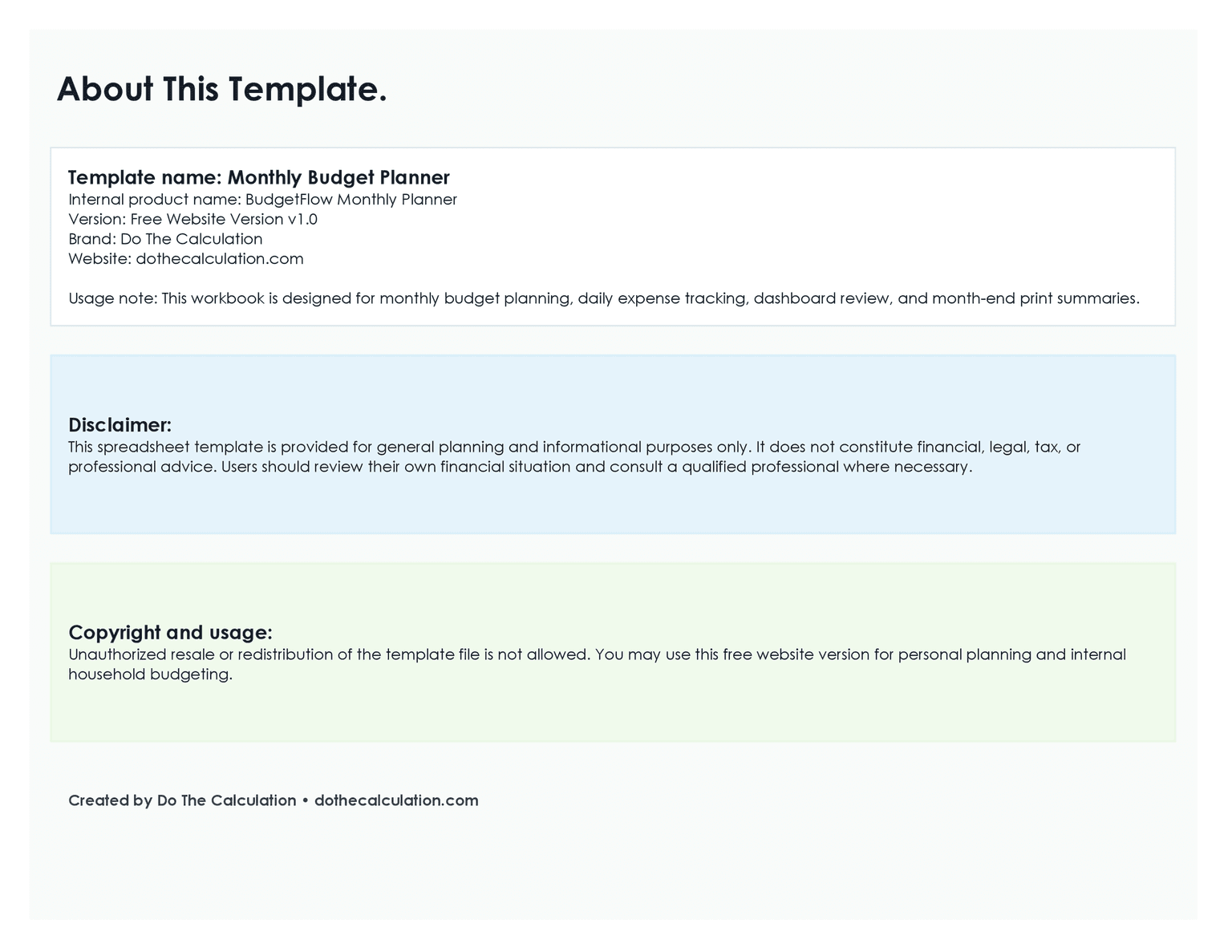
8. About
The About sheet includes template information, version details, website information, usage notes, copyright guidance, and a general disclaimer.
How to Use the Template
Open the workbook in Microsoft Excel and follow these simple steps to start tracking your finances.
- Step 1: Open the workbook — Download the Excel file and open it in Microsoft Excel. Save a copy before making major changes so you always have a clean version available.
- Step 2: Review the Start Here sheet — Start with the guide sheet. It explains the basic workflow and shows which areas are meant for user input.
- Step 3: Customize Settings — Go to the Settings sheet and adjust the currency, month, year, income sources, expense categories, and payment methods if needed.
- Step 4: Enter planned income and expenses — Use the Monthly Budget sheet to enter your planned income and your expected spending by category.
- Step 5: Track daily expenses — As the month goes on, add transactions to the Expense Tracker. Record the date, description, category, payment method, amount, and any useful notes.
- Step 6: Review the Dashboard — Use the Dashboard to see how your actual spending compares with your plan. Pay special attention to categories marked near limit or over budget.
- Step 7: Use the Print Summary at month-end — At the end of the month, review the Print Summary sheet. Use the reflection prompts to note what went well, where you overspent, and what you want to improve next month.
Understand Your Budget Dashboard
The Dashboard is designed to give you a quick financial snapshot of your month.
KPI Cards
The top section summarizes the most important numbers, including planned income, actual expenses, remaining balance, planned savings, savings rate, and budget health score.
Budget Health Score
The budget health score gives a simple overall signal for the month. It is not financial advice, but it gives you a quick way to judge whether your current spending pattern looks healthy, needs attention, or is becoming risky.
Planned vs Actual View
The budget vs actual chart compares planned spending with actual spending by category. This helps you see whether your budget was realistic and where your spending moved away from the original plan.
Category Analysis
The category table shows planned budget, actual spend, remaining or over amount, and status. This is one of the most practical parts of the template because it shows exactly which categories are on track and which need attention.
Over-Budget Indicators
If a category goes over budget, the status and alert areas make it easier to notice. This helps you respond during the month instead of waiting until the end.
Top Spending Insights
The dashboard highlights the top spending categories so you can quickly see where most of your money is going.
Quick Insight Panel
The quick insight section gives a short summary based on the month’s budget performance. It is designed to help you interpret the numbers instead of only looking at charts.
Who This Template Is Best For
This Excel budget planner is a versatile tool that fits many different financial planning situations.
Monthly household budgeting
Use it to plan income, bills, groceries, subscriptions, and everyday family spending.
Personal finance tracking
Keep your income and expenses organized in one workbook instead of scattered across notes or separate files.
Beginner budget planning
The workbook includes a Start Here sheet and simple input areas, making it useful for people who are new to budgeting.
Freelance income tracking
Freelancers can use the planned income section to estimate variable income from different sources and compare it with monthly expenses.
Student budgeting
Students can track rent, food, transportation, education costs, personal spending, and monthly cash flow.
Simple expense review
If you do not need a complicated finance system, this template gives you a practical way to review spending by category.
Free Download and Etsy Option
You can download the Monthly Budget Planner Excel Template free from this page. We believe in providing accessible resources for personal financial management.
The same template is also available on Etsy for $0.99 if you prefer using Etsy for digital downloads or would like to support the work behind the template. The free website version and Etsy listing are intended to provide the same simple monthly budgeting workbook unless otherwise stated on the listing page.
Why This Budget Spreadsheet Is Different
This is not just a blank budget table. It is designed to feel like a clean budgeting system inside Excel. It combines planning, tracking, dashboard review, and a monthly summary in one workbook.
- Clean dashboard-style layout — The Dashboard gives the workbook a more visual feel than a basic expense list.
- Guided Start Here sheet — New users can follow the workflow without needing advanced Excel knowledge.
- Editable categories — You can adjust income sources, expense categories, payment methods, and other settings to match your own budget.
- Budget vs actual comparison — The template does not only record spending. It compares actual expenses against the monthly plan.
- Status indicators — Category statuses help you see whether spending is on track, near limit, or over budget.
- Printable monthly summary — The summary sheet gives you a clean month-end report and reflection space.
- No complicated setup — The workbook does not use VBA, macros, external data connections, or subscription-based tools.
Practical Budgeting Tips Before You Start
Use these guidelines to build a sustainable and helpful budgeting habit.
- Start with realistic categories — Do not make your first budget too strict. Start with categories that reflect how you actually spend money, then improve them over time.
- Separate fixed and variable expenses mentally — Fixed expenses are costs like rent, insurance, or subscriptions. Variable expenses include groceries, dining out, shopping, and entertainment. Variable categories usually need the most attention because they change throughout the month.
- Record expenses regularly — A budget tracker works best when you update it consistently. Try adding expenses daily or every few days instead of waiting until the end of the month.
- Watch categories that reach 80% of budget — If a category has used most of its budget before the month is over, review it early. This gives you time to adjust spending before it becomes an over-budget category.
- Use notes for unusual spending — The Notes column is useful for explaining one-time purchases, unexpected bills, or expenses you want to remember later.
- Review top spending categories — Your top spending categories often show the biggest opportunities for improvement. Focus on the categories that actually move your budget, not tiny expenses that do not change the overall picture.
- Do not aim for a perfect first month — The first month is mostly about learning your real spending pattern. After one or two months, your planned budget will usually become more accurate.
- Use the month-end reflection — The reflection prompts are there for a reason. Write down what went well, where you overspent, and what you want to change next month.
Limitations and Honest Notes
This template is designed for simple monthly planning and tracking, so it is helpful to understand its boundary lines.
- It is not financial advice — The workbook is for general planning and informational use only. It does not provide financial, tax, legal, or investment advice.
- It does not connect to bank accounts — You need to enter expenses manually. This keeps the workbook simple and private, but it also means you are responsible for keeping the tracker updated.
- It does not use macros or external data — The template is built without VBA, macros, Power Query, or external connections. This makes it easier to use and safer for basic spreadsheet users.
- It is focused on one-month budgeting — This free version is designed for monthly planning. It does not include annual tracking, debt payoff planning, bills tracking, or savings goal modules.
- Save a copy before editing heavily — If you plan to customize formulas, layouts, or categories heavily, save a backup copy first.
- Print settings may vary — The Print Summary sheet is designed as a clean monthly report, but printer settings can vary by Excel version, operating system, and printer. Check print preview before printing or saving as PDF.
Frequently Asked Questions
Is this Monthly Budget Planner Excel Template free?
Yes. The website version is available as a free download from Do The Calculation.
Why is it also available on Etsy for $0.99?
Some users prefer downloading digital products through Etsy, and some may want to support the work behind the template. The website download is free, while the Etsy listing is available for a small $0.99 price.
Does this template work in Microsoft Excel?
Yes. This version is designed for Microsoft Excel.
Does it work in Google Sheets?
This version is designed for Microsoft Excel. Some parts may work in Google Sheets, but the best experience is in Excel unless a dedicated Google Sheets version is provided.
Does the workbook use macros or VBA?
No. The template does not use macros, VBA, Power Query, external data connections, or add-ins.
Can I edit the budget categories?
Yes. The Settings sheet includes editable categories, income sources, payment methods, account names, and status options.
Can I track daily expenses?
Yes. The Expense Tracker sheet includes a transaction log where you can enter daily expenses with date, description, category, payment method, amount, and notes.
Can I compare budget vs actual spending?
Yes. The template compares planned budget amounts with actual spending so you can see where you are on track, near your limit, or over budget.
Does it include a dashboard?
Yes. The Dashboard sheet includes KPI cards, budget vs actual charts, category analysis, top spending categories, over-budget alerts, and a quick insight area.
Can I print the monthly summary?
Yes. The workbook includes a Print Summary sheet designed for a clean month-end review. Check print preview before printing because printer settings can vary by device and Excel version.
Is this template good for beginners?
Yes. The template includes a Start Here sheet and is designed for users who want a simple, guided budgeting workflow.
Can I use it every month?
Yes. You can save a new copy for each month or clear the sample data and reuse the workbook. For best organization, keep separate copies for different months.
Can I customize the currency?
Yes. The Settings sheet includes a currency field. Number formatting may depend on your Excel settings, so review the format if you use a currency other than dollars.
Is this spreadsheet financial advice?
No. It is a planning and organization tool only. It does not provide financial, legal, tax, or professional advice.